Grid Meister
v.2.0.2.0
Overview
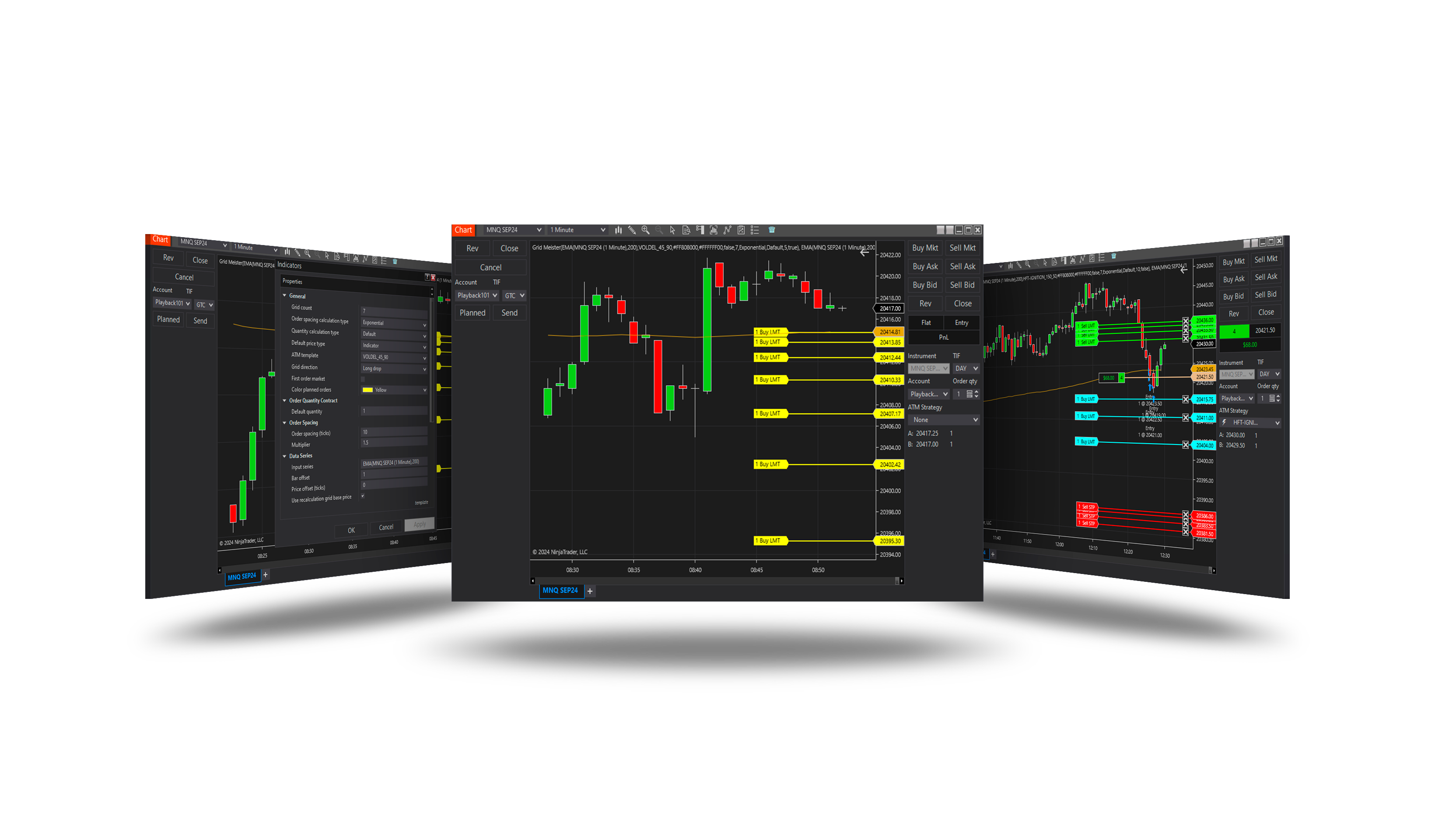
A tool for order grids. Plan a grid on the chart - direction, spacing, quantities, the price it starts from - see every order before it goes, then send it with a click or a key. The grid can follow a moving price, and it is found again after a reload.
How to use it
- Add the indicator and open its panel on the chart's left side.
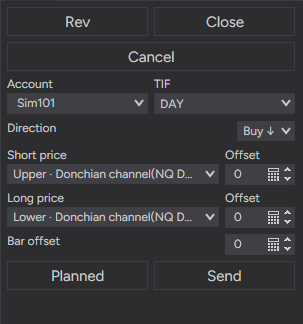
- Choose the Direction (Sell ↑, Sell ↓, Buy ↑, Buy ↓) and the price each side starts from - a bar price, Input, Manual, or any line of another indicator on the chart - with an offset.
- Planned (or Space) shows the grid; adjust it with the keys below.
- Send (or Enter) sends it. Cancel removes the grid's orders, Close flattens the instrument, Rev reverses.
Parameters
General
| Parameter | Default | What it does |
|---|---|---|
| Grid count | 5 | The parameter specifies the number of simultaneous orders in the grid, values from 1 and higher are allowed. |
| Order spacing calculation type | Fixed | This parameter defines the method used to calculate the spacing between grid orders. |
| Quantity calculation type | Dafault | This parameter defines the method used to calculate the quantity of grid orders. |
| Long ATM template | None | The ATM template for long grids (and for short ones while Short ATM template is Same as Long). None: the orders go without an ATM. |
| Short ATM template | — | The ATM template for short grids. Same as Long: short grids use the Long ATM template. |
| Grid direction | Long drop | Defines the trading direction of the grid for placing orders. It determines whether the system places orders when the price is falling or rising. |
| First order market | Off | This function allows you to place the initial market order in a grid strategy, enabling immediate entry into the position without waiting for limit orders to be executed. |
| Color planned orders | yellow | The parameter defines the colour for the planned grid orders. |
| Color planned MKT order | olive | The parameter defines which colour will be used in the planned MKT order. |
Data Series
| Parameter | Default | What it does |
|---|---|---|
| Default price | 0 | Specifies the custom price from which the order grid will be constructed. |
| Bar offset | 0 | The bar offset specifies the index of the bar from which the selected price type will be used, 0 is the index of the current bar, 1 is the index of the previous bar, etc. |
| Use recalculation grid base price | Off | Enable a function for recalculating the grid base price |
| Recalculation interval (bars) | 10 | Determines the interval in bars to recalculate the grid base price |
Order Spacing
| Parameter | Default | What it does |
|---|---|---|
| Order spacing (ticks) | 10 | The parameter specifies the distance between grid orders in ticks. |
| Step | 5 | Defines the fixed distance between consecutive grid orders. |
| Multiplier | 2 | Defines the multiplier used to calculate the distance between consecutive grid orders. |
| Fibonacci start | 1 | Specifies the starting value for the Fibonacci sequence. |
Order Quantity Contract
| Parameter | Default | What it does |
|---|---|---|
| Default quantity | 1 | The parameter specifies the default quantity |
| Increment | 1 | Defines a fixed quantity increment for subsequent grid orders. |
| Multiplier | 2 | Defines the multiplier used to calculate the quantity of subsequent grid orders. |
| Fibonacci start | 1 | Specifies the starting value for the Fibonacci sequence. |
Hot keys
With the panel open and the chart in focus:
| Key | Action |
|---|---|
| Space | Plan the grid |
| Enter | Send - plans and sends at once if there is no plan |
| ↑ / ↓ | Move the planned grid by a tick |
| + / − | Wider / narrower spacing |
| Esc | Cancel - the plan and the sent grid's orders |
| Shift+Esc | Close - flatten the instrument (position and working orders) |
Spacing and quantity
| Type | Spacing between orders / quantity of each |
|---|---|
| Fixed | the same each time |
| Linear | grows by Step each time |
| Exponential | multiplied by Multiplier each time |
| Fibonacci | follows the Fibonacci sequence from Fibonacci start |
Good to know
- With Use recalculation grid base price, a working grid follows its price source every N bars, keeping its spacing.
- A sent grid is remembered: after F5, a chart reload or a restart it is found again on the account.
- Each side can use its own ATM template.
Version history
v.2.0.2.0 - October 2026
- Added: Esc / Shift+Esc to cancel / close; Enter sends without a plan; Sell above Buy on the panel.
- Fixed: a sent grid keeps its spacing after a reload; the panel keeps its sources.
Earlier versions
v.2.0.0.0 - October 2026
- New: panel with direction and per-side price sources (any indicator line), hot keys, ATM per side, grid restored after a reload.