ML Engine
v.3.6.4.0 Order Flow+
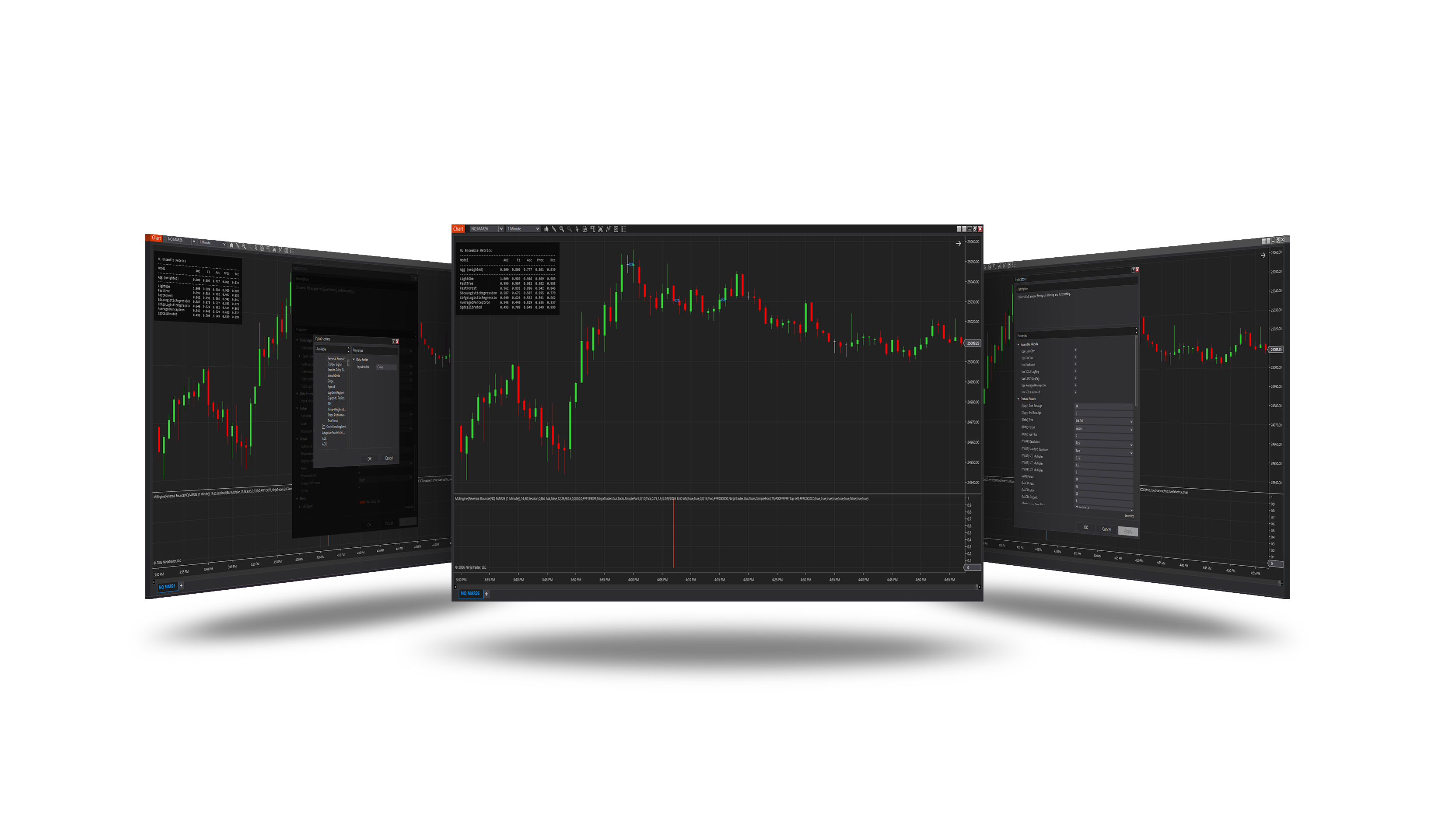
Overview
A machine-learning engine that learns from the market which signals of another indicator (or of a strategy) tend to work, and gives each new signal a probability. On a chart it filters the signals of any indicator; in the pack's strategies it is the ML Engine core setting - it can block weak signals and forecast the position size.
The position size forecast works only inside a strategy - it learns from the strategy's own trades: in the pack's strategies with Quantity → Mode = ML (see the ML Engine core page), in your own NinjaScript strategy as shown under In your own strategy. On a chart the indicator filters signals only.
How it works
- Add the indicator whose signals you want to filter, then the ML Engine with that indicator as its Input series - the signals must be above 0 for long and below 0 for short.
- The engine trains an ensemble of models on the signals and what followed them, and retrains as new outcomes arrive.
- Each signal shows its probability; signals below Min probability are filtered out.
Parameters
ML Engine
| Parameter | Default | What it does |
|---|---|---|
| Enable Logging | Off | Write the engine's log to the Output window and to a log file. |
| Show Probability | On | Show probability label on chart. |
| Show ML panel | On | Show the ML panel on the chart: the model's state, its recent signals, calibration, live AUC, the models of the ensemble and the size forecast. Sections fold with a click on their title. |
| Use Metrics Filter | Off | Block signals if metrics below thresholds. |
| Use Auto Weights | On | Auto weight direction models by AUC and F1. |
| Min Probability | 0.5 | Probability the engine must give a signal for it to pass. 0 = automatic threshold. |
| Top signals (%) | 0 | Pass only the best X % of signals by the model's probability, the boundary measured on its training data. Takes priority over Min Probability. 0 = off. |
| Bars Ahead | 60 | Bars ahead used for labeling training samples. |
| Records Before Retrain | 10 | How often the model retrains: a training run starts each time this many new labelled samples have accumulated. |
| Retrain | Always | Always: the model retrains every Records Before Retrain samples. Until edge: it retrains until its own predictions reach Freeze at AUC, then the model is frozen and no longer changes. Off: no retraining, the saved model is used as it is. |
| Freeze at AUC | 0.56 | Until edge: the AUC of the model's own recent predictions (at least 100) at which the model is frozen. 0.5 = a coin flip; 0.55-0.60 is a usable edge. |
| Label Stop (ticks) | 40 | Stop distance used to label training signals: a signal counts as a loss if price reaches it first. Independent of the strategy's own stop. |
| Label Target (ticks) | 55 | Target distance used to label training signals: a signal counts as a win if price reaches it before the stop within Bars Ahead. Independent of the strategy's own target. |
| Feature Step (bars) | 7 | Bars between the points at which the model reads its features. |
| Feature Points | 4 | Number of points at which the model reads its features, the signal bar included. More points give more detail but need more data. |
| Signal Offset Bars | 0 | How many bars back the signal is read. 0 = the current bar. |
Direction Ensemble Models
| Parameter | Default | What it does |
|---|---|---|
| Use LightGbm | On | Enable LightGbm classifier. |
| Use FastTree | On | Enable FastTree classifier. |
| Use FastForest | On | Enable FastForest classifier. |
| Use SDCA LogReg | On | Enable SDCA logistic regression. |
| Use LBFGS LogReg | On | Enable LBFGS logistic regression. |
| Use Averaged Perceptron | On | Enable Averaged Perceptron classifier. |
| Use SGD Calibrated | On | Enable SGD calibrated classifier. |
Direction Feature Params
| Parameter | Default | What it does |
|---|---|---|
| (Slope) Start Bars Ago | 14 | Start bar (ago) for VWAP slope. |
| (Slope) End Bars Ago | 0 | End bar (ago) for VWAP slope. |
| Delta source | Bars | Bars (default): volume delta and VWAP estimated from each bar - works on any history, fast backtests. Ticks: from tick data - exact, needs the tick history downloaded. |
| (Delta) Type | Bid ask | Cumulative delta calculation type. |
| (Delta) Period | Session | Cumulative delta period. |
| (Delta) Size Filter | 0 | Delta size filter (0 = off). |
| (VWAP) Resolution | Tick | The data the indicator will run off of: Standard Tick |
| (ATR) Period | 14 | ATR period for features. |
| (MACD) Fast | 12 | MACD fast period. |
| (MACD) Slow | 26 | MACD slow period. |
| (MACD) Smooth | 9 | MACD signal smoothing period. |
ML Metrics Filter
| Parameter | Default | What it does |
|---|---|---|
| Min AUC | 0.0 | Minimum AUC required to pass metrics filter. |
| Min F1 | 0.0 | Minimum F1 score required to pass metrics filter. |
| Min Accuracy | 0.0 | Minimum accuracy required to pass metrics filter. |
| Min Precision | 0.0 | Minimum precision required to pass metrics filter. |
| Min Recall | 0.0 | Minimum recall required to pass metrics filter. |
Panel Style
| Parameter | Default | What it does |
|---|---|---|
| Panel position | Top right | Corner of the price panel where the ML panel is drawn. |
| Panel scale (%) | 100 | Size of the ML panel: 100 = normal, 50 = half, 200 = double. |
| Panel opacity | 75 | Opacity of the panel's background (0-100). |
Probability Style
| Parameter | Default | What it does |
|---|---|---|
| Probability font | Consolas 11 | Font family for probability labels (e.g. Arial, Consolas). |
| Probability color | dodger blue | Text color for probability labels on chart. |
| Probability offset (ticks) | 0 | Vertical offset in ticks: positive = above bar, negative = below. |
Quantity Forecast
Set from a strategy
These settings are not shown in the indicator's settings on a chart: the quantity forecast needs a strategy - it learns from the strategy's own trades. They are set by the strategy that hosts the engine: in the pack's strategies in the core's ML Engine group (with Quantity → Mode = ML), in your own strategy as arguments - see In your own strategy.
| Parameter | Default | What it does |
|---|---|---|
| Use Quantity Forecast | On | Forecast the number of contracts for each entry from the strategy's own trades. Works only inside a strategy; shown in the panel's Size section. |
| Min Contracts | 1 | Minimum contracts allowed for quantity forecast. |
| Max Contracts | 10 | Maximum contracts allowed for quantity forecast. |
| Max Qty Step | 1 | Largest change of size from the previous entry the model sized, in contracts (0 = no limit). |
| Use Qty Auto Weights | On | Auto weight quantity models by R2. |
| Use Qty Metrics Filter | Off | Block quantity forecast if quantity metrics below thresholds. |
| Min Qty R2 | -1.0 | Minimum quantity ensemble R2 required to use quantity forecast. |
| Max Qty MAE | 1000000.0 | Maximum quantity ensemble MAE allowed to use quantity forecast. |
Quantity Ensemble Models
The models of the quantity forecast - set from a strategy, like the group above.
| Parameter | Default | What it does |
|---|---|---|
| Use Qty LightGbm | On | Enable LightGbm quantity regressor. |
| Use Qty FastTree | On | Enable FastTree quantity regressor. |
| Use Qty FastForest | On | Enable FastForest quantity regressor. |
| Use Qty SDCA | On | Enable SDCA quantity regressor. |
| Use Qty FastTree Tweedie | On | Enable FastTree Tweedie quantity regressor. |
| Use Qty OGD | On | Enable Online Gradient Descent quantity regressor. |
| Use Qty LBFGS Poisson | On | Enable LBFGS Poisson quantity regressor. |
The ML panel
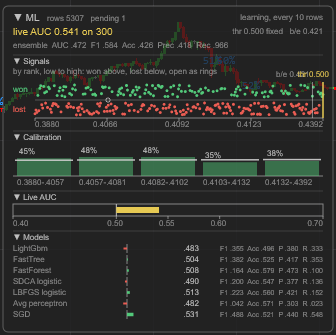
The panel shows how well the engine is doing right now. Click ML in its first line to fold it to the summary; click a section's title to fold that section. Where it sits, its size and opacity are set under Panel Style.
Summary (always shown):
- rows / pending - the examples the engine has learnt from, and the signals still waiting for their outcome. On the right - what the engine is doing now (learning, retraining).
- live AUC - how well the probabilities separate the signals that won from those that lost, measured on the recent live signals: above 0.55 green, 0.50-0.55 yellow, below 0.50 red. It needs 30 resolved signals first.
- thr / b/e - the probability threshold the signals are filtered by (auto or fixed), and the break-even: the win rate the signals need with the label's stop and target to pay off.
- ensemble - the ensemble's scores on the data held back from its training: AUC, F1, accuracy, precision, recall.
| Section | What it shows |
|---|---|
| Signals | The recent signals from the lowest probability (left) to the highest (right): won ones above the line, lost ones below, open ones as rings on it; the threshold (yellow) and the break-even lines. Good: green to the right, red to the left. |
| Calibration | The signals in five equal groups by probability: each group's real win rate as a bar, its average probability as a mark. Bars rising from left to right - the ranking works. Needs 25 resolved signals. |
| Live AUC | The live AUC on a scale from 0.40 to 0.70, against the 0.50 line of a coin toss. |
| Models | Each model of the ensemble: its AUC as a bar from 0.50 (green to the right - better than a coin, red to the left - worse) and its F1, accuracy, precision and recall. |
| Size model | Only inside a strategy with the quantity forecast on: the current forecast in R and the contracts it gives within Min / Max contracts, a histogram of the recent forecasts, and each size model's R2 (a bar from zero; to the right - it explains the results) and average error. |
Commitment of Traders
The direction models also use the COT report. Turn on Control Center → Tools → Options → Market Data → Download COT data at startup; without it the engine works with its other features.
In your own strategy
The ML Engine can filter the signals of any NinjaScript strategy - an ordinary managed strategy with EnterLong / EnterShort, no ASF core needed. Your strategy writes its raw signal into a series; the engine passes the signals it believes in and blocks the rest.
| Member | What it is |
|---|---|
MLEngine( input , ... ) | Creates the engine. input is your signal series: +1 long, -1 short, 0 none - never a price. |
MLSignal[0] | The filtered signal: your +1 / -1 when the engine lets it pass, 0 when it blocks it or has no signal. |
GetRecommendedContracts( defaultQty ) | The size for the next entry from the quantity forecast, kept between Min and Max contracts. Returns defaultQty until the model has learned enough. |
UpdateStrategySnapshot( tradesPerformance ) | Hands the strategy's closed trades to the quantity model - call it when the position goes flat. |
SetRiskModel( stop , target , unit ) | Labels the signals against the stop and target you really trade, in the unit of SetStopLoss (ticks, currency, percent...). |
The short form
MLEngine( input , ... ) has a default for every setting - the same values the indicator has on a chart. Pass only the series, and by name only what you want to change:
ml = MLEngine( baseSignal );                                        // all defaults
ml = MLEngine( baseSignal , minProbability: 0.55 , barsAhead: 30 );  // two settings changed
Named arguments do not depend on their position, so your code keeps compiling when a new engine version adds a setting. Do not use the positional form NinjaTrader generates (every setting, in order): it breaks with any change of the engine's settings.
A complete strategy
An EMA cross filtered by the engine, with the size from the quantity forecast:
using NinjaTrader.Cbi;
using NinjaTrader.Data;
using NinjaTrader.NinjaScript.Indicators;

namespace NinjaTrader.NinjaScript.Strategies
{
    public class MyMLStrategy : Strategy
    {
        private EMA fast , slow;
        private Series<double> baseSignal;
        private Indicators.ASF.MLEngine ml;

        protected override void OnStateChange()
        {
            if ( State == State.SetDefaults )
            {
                Name      = "My ML Strategy";
                Calculate = Calculate.OnBarClose;
            }
            else if ( State == State.Configure )
            {
                AddDataSeries( BarsPeriod.BarsPeriodType , BarsPeriod.Value );   // index 1: a copy of the chart's bars
                AddDataSeries( BarsPeriodType.Day , 1 );                         // index 2: daily bars
            }
            else if ( State == State.DataLoaded )
            {
                fast       = EMA( 9 );
                slow       = EMA( 21 );
                baseSignal = new Series<double>( this , MaximumBarsLookBack.Infinite );

                ml = MLEngine( baseSignal , minProbability: 0.55 );
                AddChartIndicator( ml );
            }
        }

        protected override void OnBarUpdate()
        {
            if ( BarsInProgress != 0 || CurrentBars[0] < 22 || CurrentBars[1] < 1 || CurrentBars[2] < 1 )
                return;

            // Your raw signal: +1 long, -1 short, 0 nothing.
            baseSignal[0] = CrossAbove( fast , slow , 1 ) ?  1
                          : CrossBelow( fast , slow , 1 ) ? -1
                          : 0;

            int qty = ml.GetRecommendedContracts( DefaultQuantity );

            // Only what the engine let through is traded.
            if ( ml.MLSignal[0] > 0 )
                EnterLong( qty , "Long" );
            else if ( ml.MLSignal[0] < 0 )
                EnterShort( qty , "Short" );
        }

        protected override void OnPositionUpdate( Position position , double averagePrice , int quantity , MarketPosition marketPosition )
        {
            // The quantity model learns from each closed trade.
            if ( position.MarketPosition == MarketPosition.Flat && ml != null )
                ml.UpdateStrategySnapshot( SystemPerformance.AllTrades.TradesPerformance );
        }
    }
}
The data series
The engine reads two series of its own, and NinjaTrader requires the hosting strategy to add the same ones, in State.Configure, before any of its own: index 1 - a copy of the chart's bars (as above; with deltaSource: MLDeltaSource.Ticks, a 1-tick series AddDataSeries( BarsPeriodType.Tick , 1 ) instead), and index 2 - daily bars. Your own extra series start at index 3.
Without the quantity forecast, size the entries yourself and leave out GetRecommendedContracts and OnPositionUpdate.
Every setting
The same call with every setting named, at its default value. Copy it and change what you need - or delete the lines you keep at their defaults. It needs using NinjaTrader.Gui.Tools; and using NinjaTrader.NinjaScript.Indicators.ASF.MyMLEngineEnums;.
MLEngine with all its settings
ml = MLEngine( baseSignal ,

    // Signal and labels
    minProbability:               0.5,      // probability a signal needs to pass (0 = the best F1 threshold)
    topSignalsPercent:            0,        // pass only the best N % of signals (0 = off)
    barsAhead:                    60,       // bars a signal has to reach its target or stop
    labelStopTicks:               40,       // stop for labelling the signals, in ticks
    labelTargetTicks:             55,       // target for labelling the signals, in ticks
    signalOffsetBars:             0,        // bars back the input signal is read

    // Training
    recordsBeforeRetrain:         10,       // new labelled signals before the models retrain
    retrainMode:                  MLRetrainMode.Always,   // Always, UntilEdge, Off
    freezeAtAuc:                  0.56,     // UntilEdge: the AUC at which training stops
    useAutoWeights:               true,     // weight the models by their quality

    // Direction models
    useLightGbm:                  true,
    useFastTree:                  true,
    useFastForest:                true,
    useSdcaLogisticRegression:    true,
    useLbfgsLogisticRegression:   true,
    useAveragedPerceptron:        true,
    useSgdCalibrated:             true,

    // Features
    featureStep:                  7,        // bars between the points the features are read at
    featurePoints:                4,        // points the features are read at
    aTRPeriod:                    14,
    slopeStartBarsAgo:            14,
    slopeEndBarsAgo:              0,
    mACDFast:                     12,
    mACDSlow:                     26,
    mACDSmooth:                   9,
    deltaSource:                  MLDeltaSource.Bars,     // Bars (estimate) or Ticks (exact, needs tick data)
    hostTickSeries:               false,    // true if your strategy's index 1 is a 1-tick series anyway
    deltaType:                    CumulativeDeltaType.UpDownTick,
    deltaPeriod:                  CumulativeDeltaPeriod.Session,
    deltaSizeFilter:              0,
    resolution:                   VWAPResolution.Standard,

    // Metrics filter - block the signals while the models are weak
    useMetricsFilter:             false,
    minAuc:                       0,
    minF1:                        0,
    minAccuracy:                  0,
    minPrecision:                 0,
    minRecall:                    0,

    // Quantity forecast
    useQuantityForecast:          true,
    minContracts:                 1,
    maxContracts:                 10,
    maxQtyStepPerTrade:           1,        // largest change of size from one entry to the next
    useQtyAutoWeights:            true,
    useQtyMetricsFilter:          false,
    minQtyR2:                     -1.0,
    maxQtyMAE:                    1000000.0,
    useQtyLightGbm:               true,
    useQtyFastTree:               true,
    useQtyFastForest:             true,
    useQtySdca:                   true,
    useQtyFastTreeTweedie:        true,
    useQtyOnlineGradientDescent:  true,
    useQtyLbfgsPoissonRegression: true,

    // Display
    enableLogging:                false,    // the engine's log in the Output window
    showProbability:              true,     // the probability over each signal
    showHud:                      true,     // the ML panel
    hudPosition:                  TableTextPosition.TopRight,
    hudScale:                     100,
    tableOpacity:                 75,
    probFont:                     new SimpleFont( "Consolas" , 11 ),
    probBrush:                    Brushes.DodgerBlue,
    probVerticalOffsetTicks:      0 );

// Label against the stop and target you really trade (here 40 / 55 ticks).
ml.SetRiskModel( 40 , 55 , CalculationMode.Ticks );
The argument names follow the setting names; the signal settings are explained under Parameters, the quantity settings in the comments above.
Requirements
- NinjaTrader Order Flow+ (order-flow features).
Version history
v.3.6.4.0 - October 2026
- Changed: the position size forecast and its settings only inside a strategy; on a chart the engine filters signals.
Earlier versions
v.2.0.0.0 - May 25, 2026
- Direction forecast: added COT (Commitment of Traders) features.
- Added contract quantity forecast module.
v.1.0.0.0
- Initial release: direction ensemble filter, metrics table, probability labels.