Slack
v.2.0.0.0
Overview
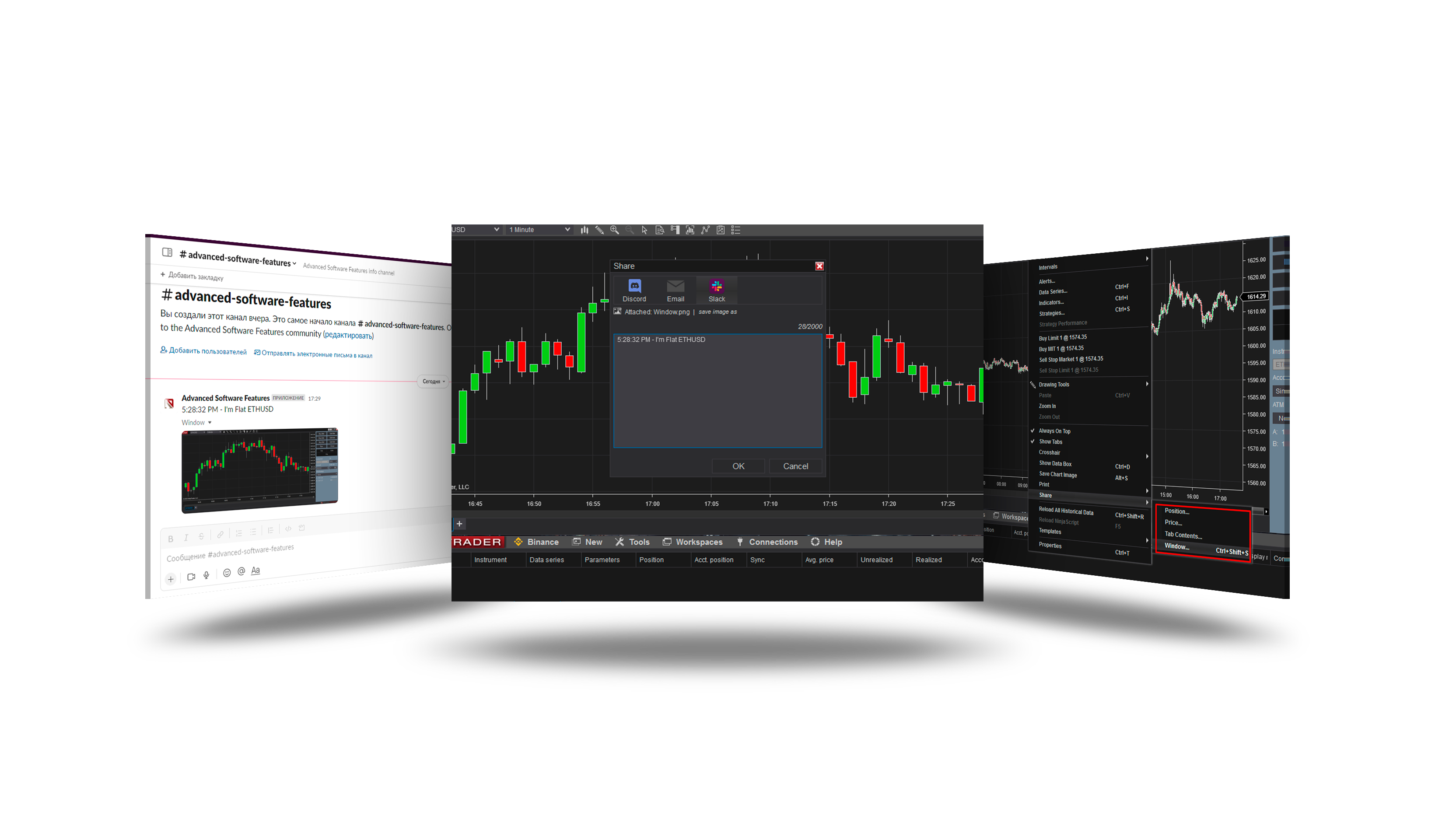
Sends NinjaTrader shares - chart screenshots, alerts and messages from strategies - to a Slack channel through a bot token of your own Slack app.
Create the Slack app
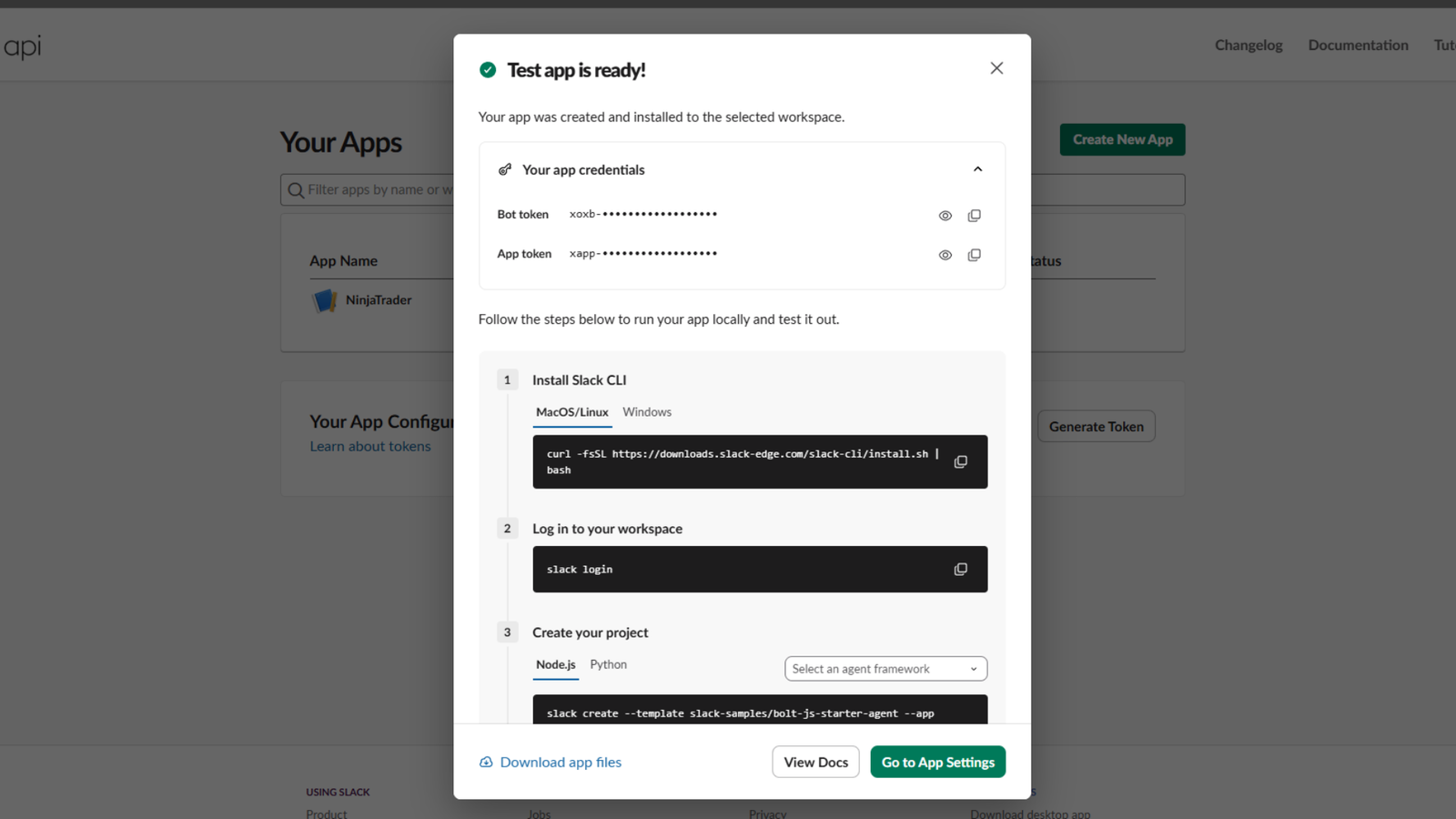
- Go to api.slack.com/apps → Create New App → From scratch, name it and choose the workspace.
- Under OAuth & Permissions → Bot Token Scopes, add chat:write and files:write.
- Click Install to Workspace and copy the Bot User OAuth Token (it starts with
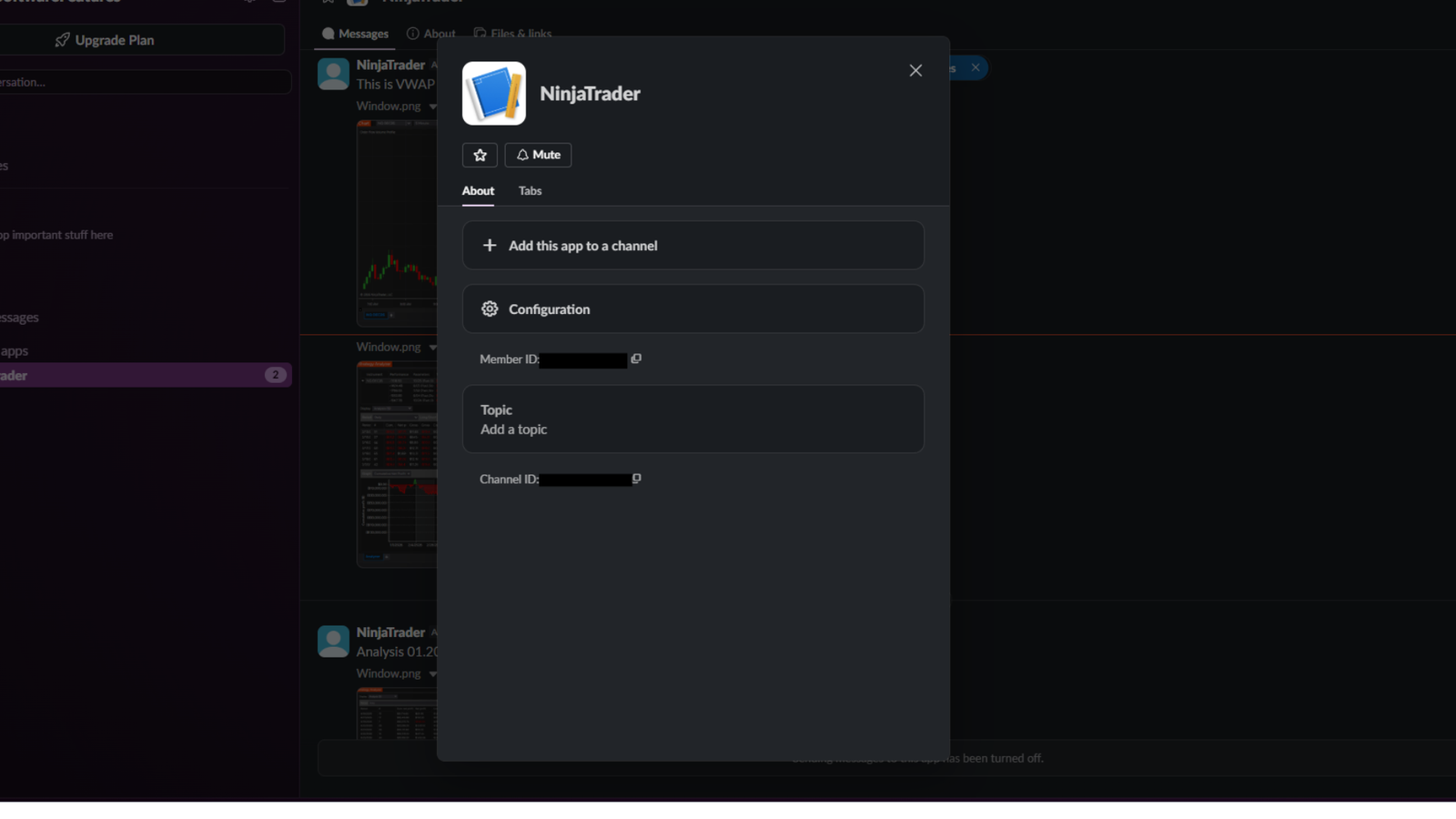
xoxb-). - In Slack, open the channel, add the app to it (Integrations → Add apps), and copy the Channel ID from the channel details.
Add it in NinjaTrader
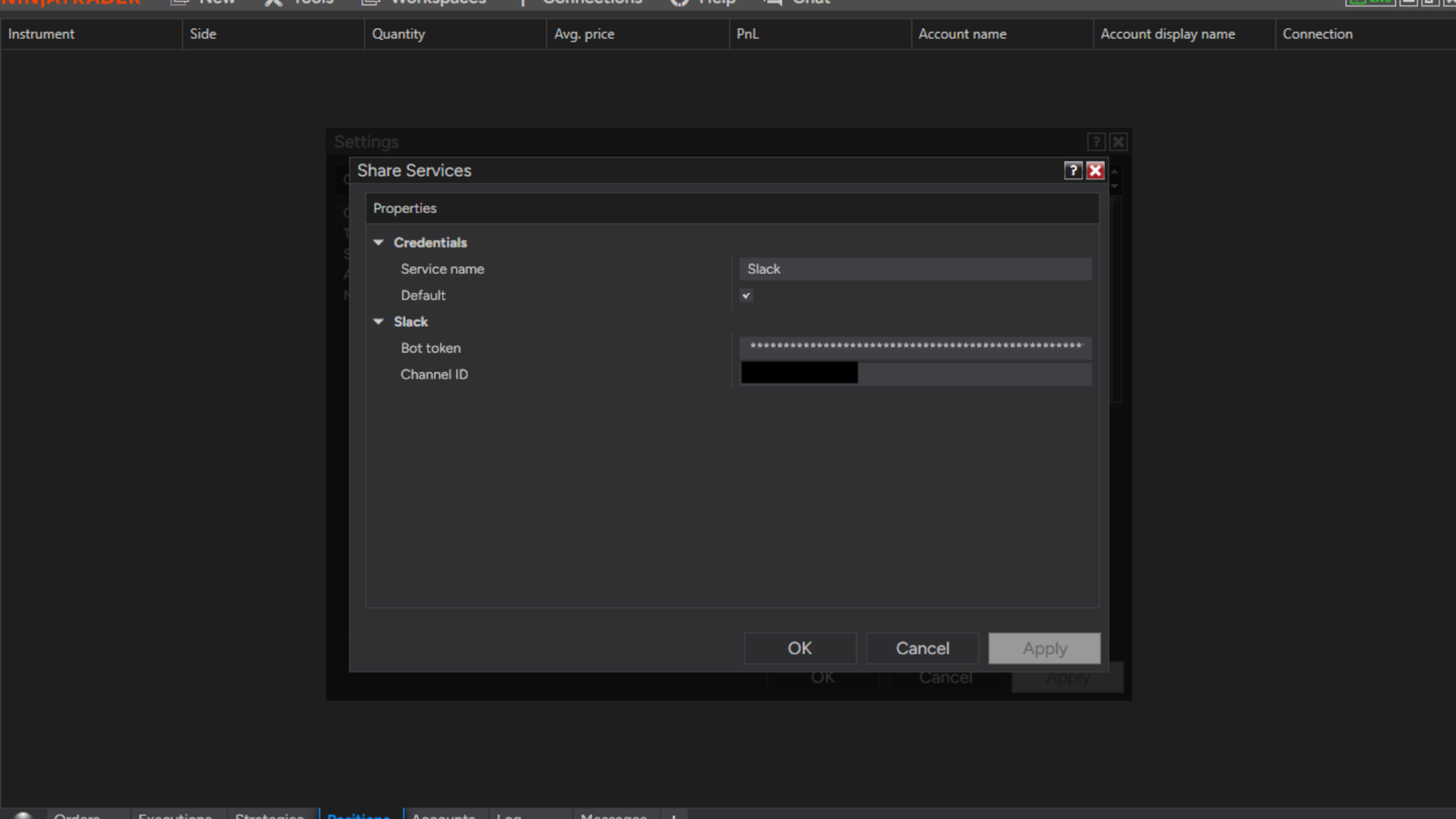
- Control Center → Tools → Options → General → Sharing Connections (Configure).
- Select Slack under Available and click add.
- Fill in its properties (below) and click OK.
Send
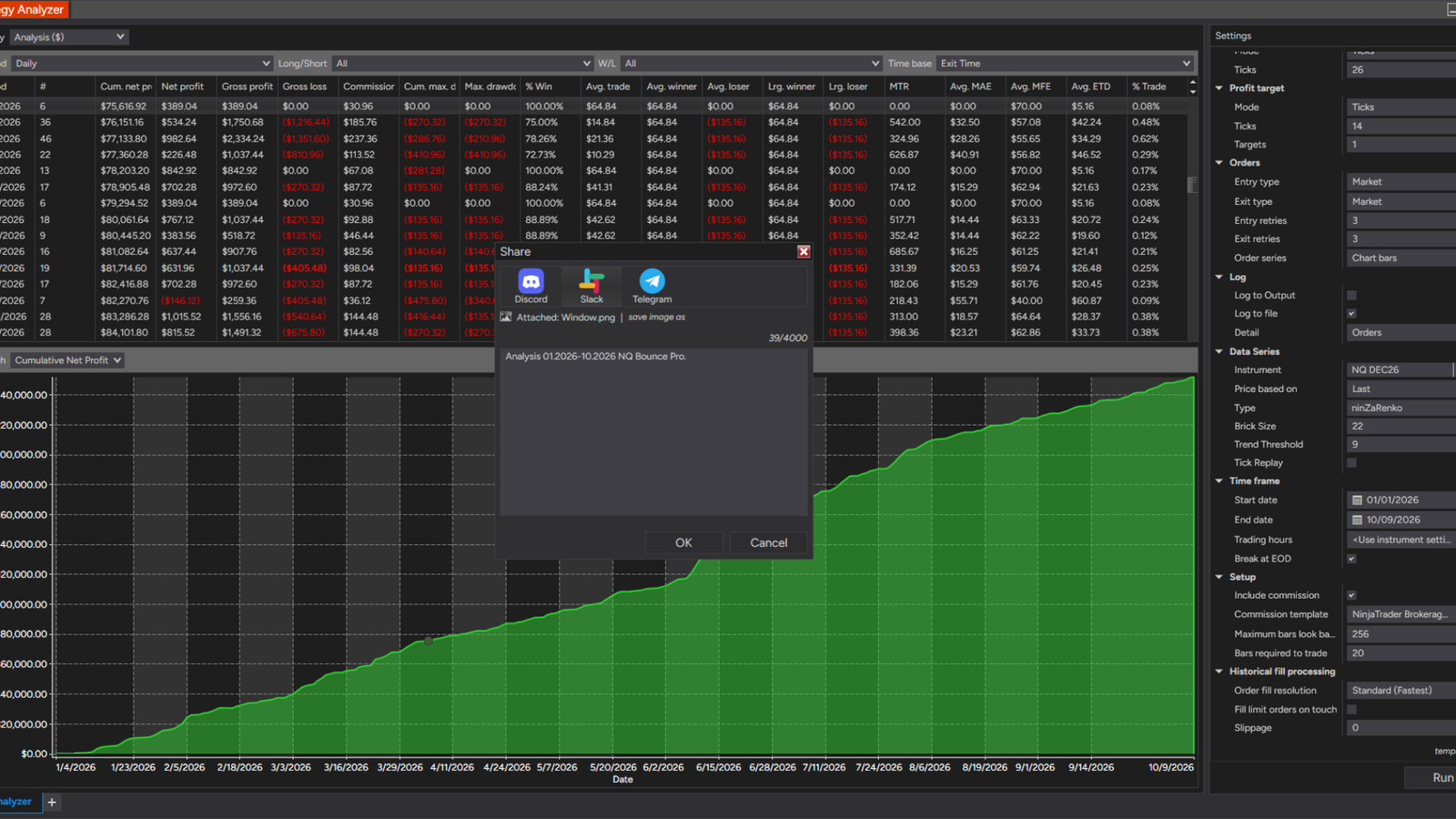
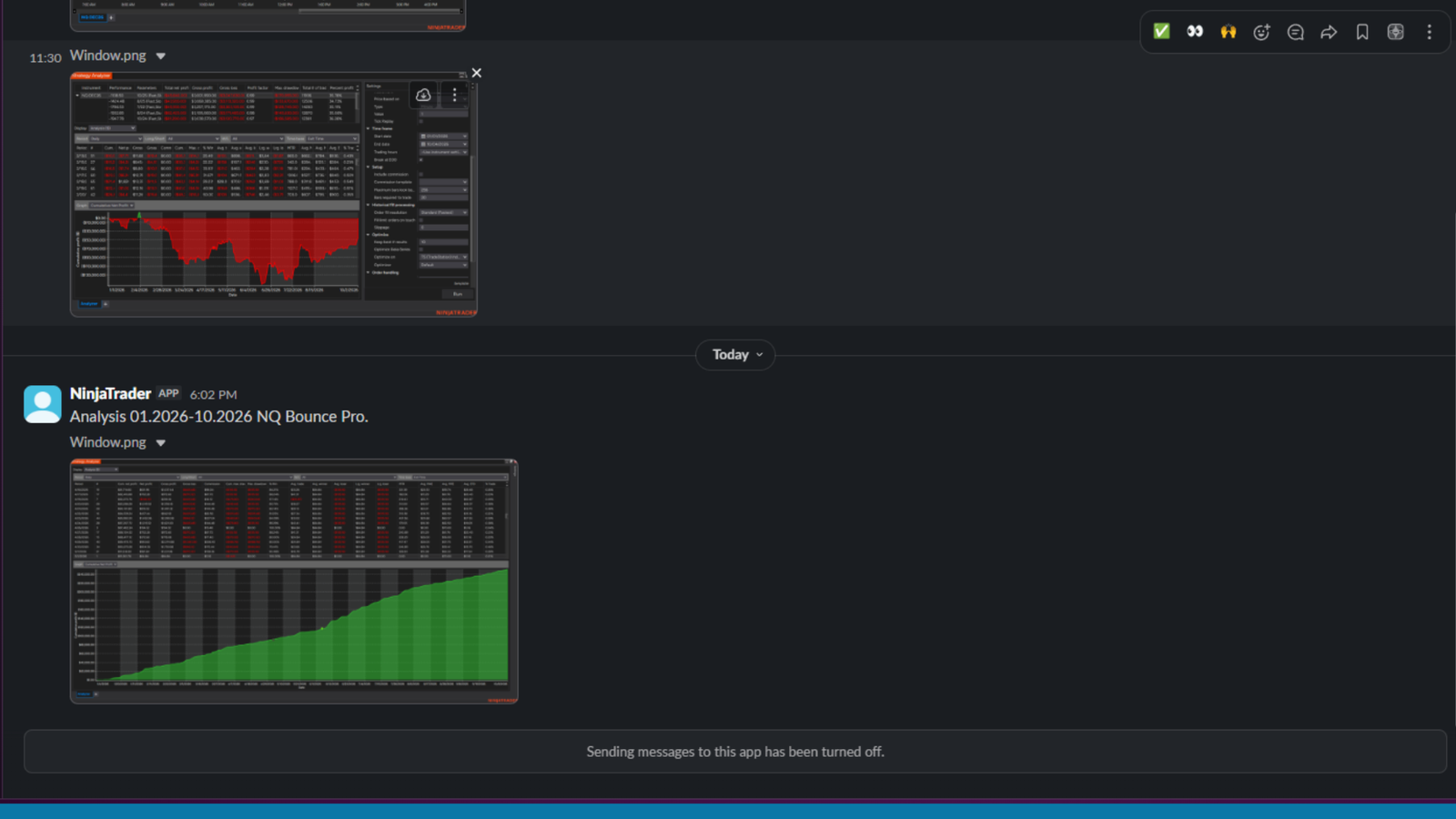
Right-click a chart or another window → Share → Window, Tab contents, Position or Price → choose Slack, edit the text and send. Strategies and alerts can send through it too.
Parameters
| Parameter | Default | What it does |
|---|---|---|
| Bot token | — | Your Slack app's Bot User OAuth Token (xoxb-...), with the scopes chat:write and files:write. |
| Channel ID | — | Where to send: open your app in Slack > About and copy the ID shown there. To post into another channel, use that channel's ID (channel name > About) and add the app to it. |
Version history
v.2.0.0.0 - October 2026
- Changed: screenshots upload with Slack's current file upload; the token is sent securely; Slack's errors are reported plainly.